Bundlebees for Shopify
The same five bundle types you know from the BigCommerce version, rebuilt to work inside the Shopify admin.
Demo
Installation
- Open the Bundlebees listing in the Shopify App Store and click Install.
- Review the permissions Shopify shows you and approve the install.
- Approve the subscription when Shopify asks. Billing for the Shopify version runs through your Shopify account, so there is no separate payment form.
- Open the app from Apps > Bundlebees in your Shopify admin sidebar.
User Guide
Finding your way around
Bundlebees for Shopify follows the Shopify admin design, so it looks different from the BigCommerce version. Instead of a menu across the top of the app, everything lives under Apps > Bundlebees in the left sidebar:
- Bundles lists every bundle you have made.
- Create Bundle starts a new bundle.
- Settings controls where bundles appear and what colors they use.
1. The Bundles page
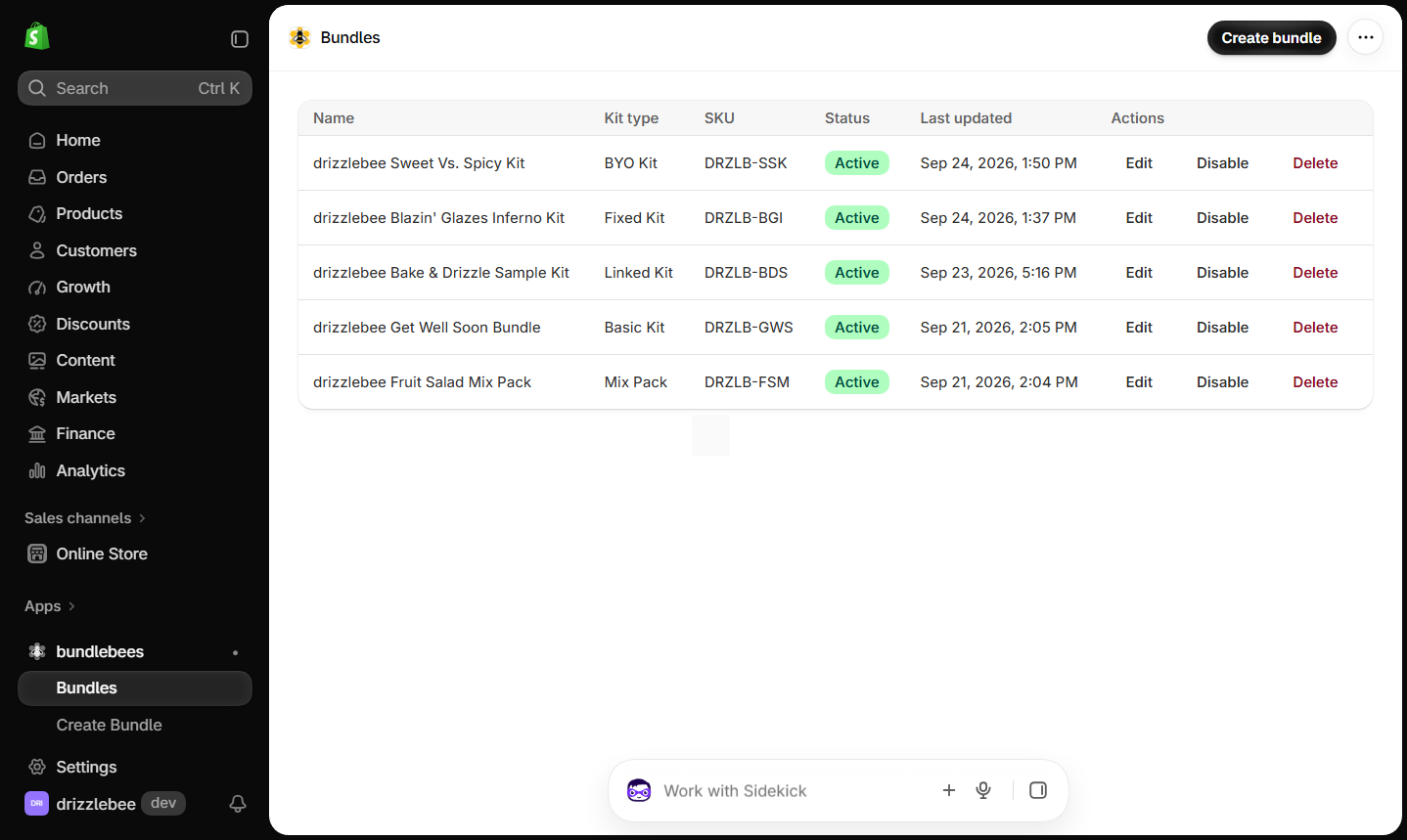
The Bundles page shows each bundle with its name, kit type, SKU, status and when it was last updated. Each row has Edit, Disable and Delete actions. Use the Create bundle button in the top right corner to start a new one.
2. Choose a bundle type
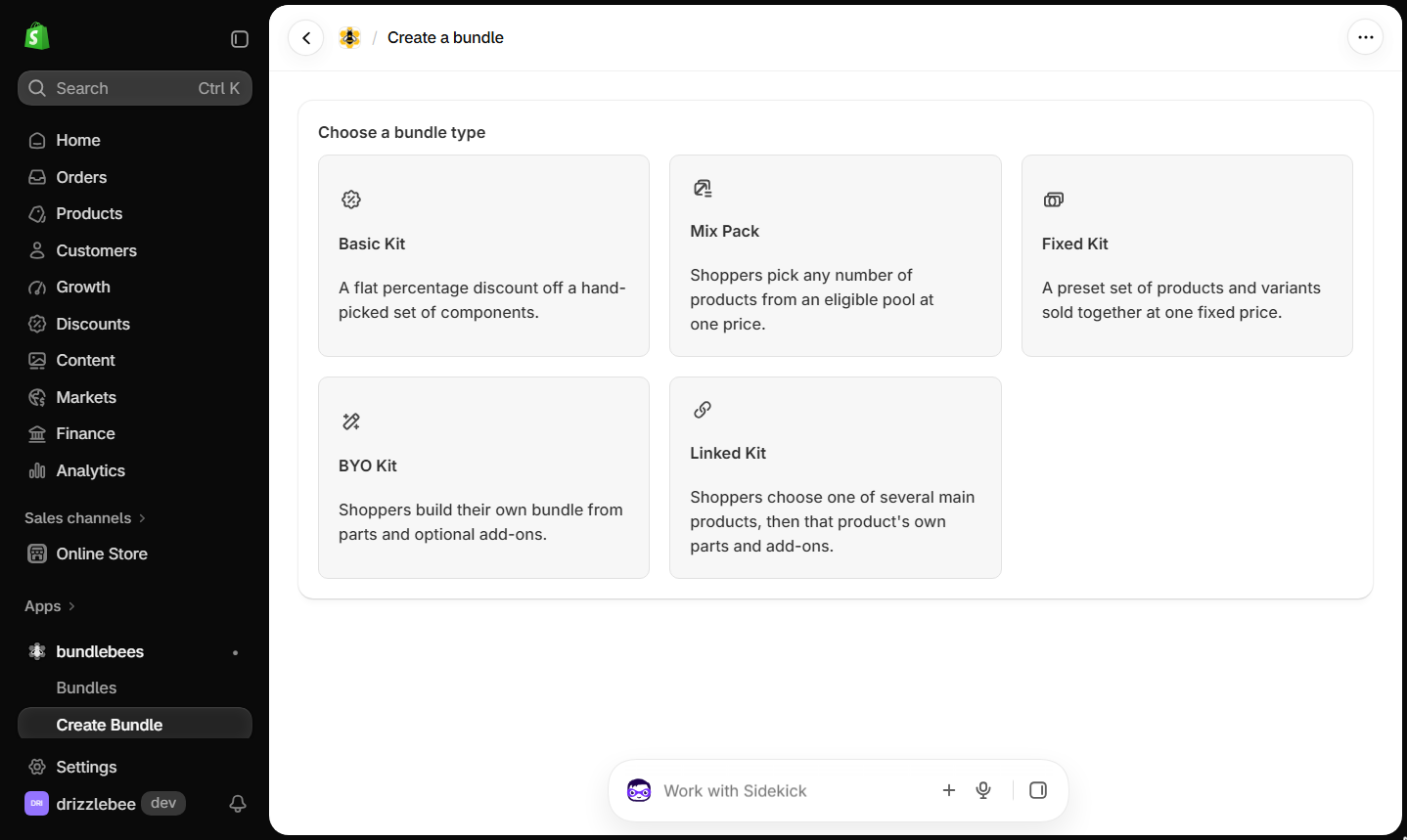
Creating a bundle starts with picking the type. Each type is a card with a short description:
- Basic Kit: a flat percentage discount off a hand-picked set of products.
- Mix Pack: shoppers pick any number of products from an eligible pool at one price.
- Fixed Kit: a preset set of products and variants sold together at one fixed price.
- BYO Kit: shoppers build their own bundle from parts and optional add-ons.
- Linked Kit: shoppers choose one of several main products, then that product’s own parts and add-ons.
3. Fill in the bundle details
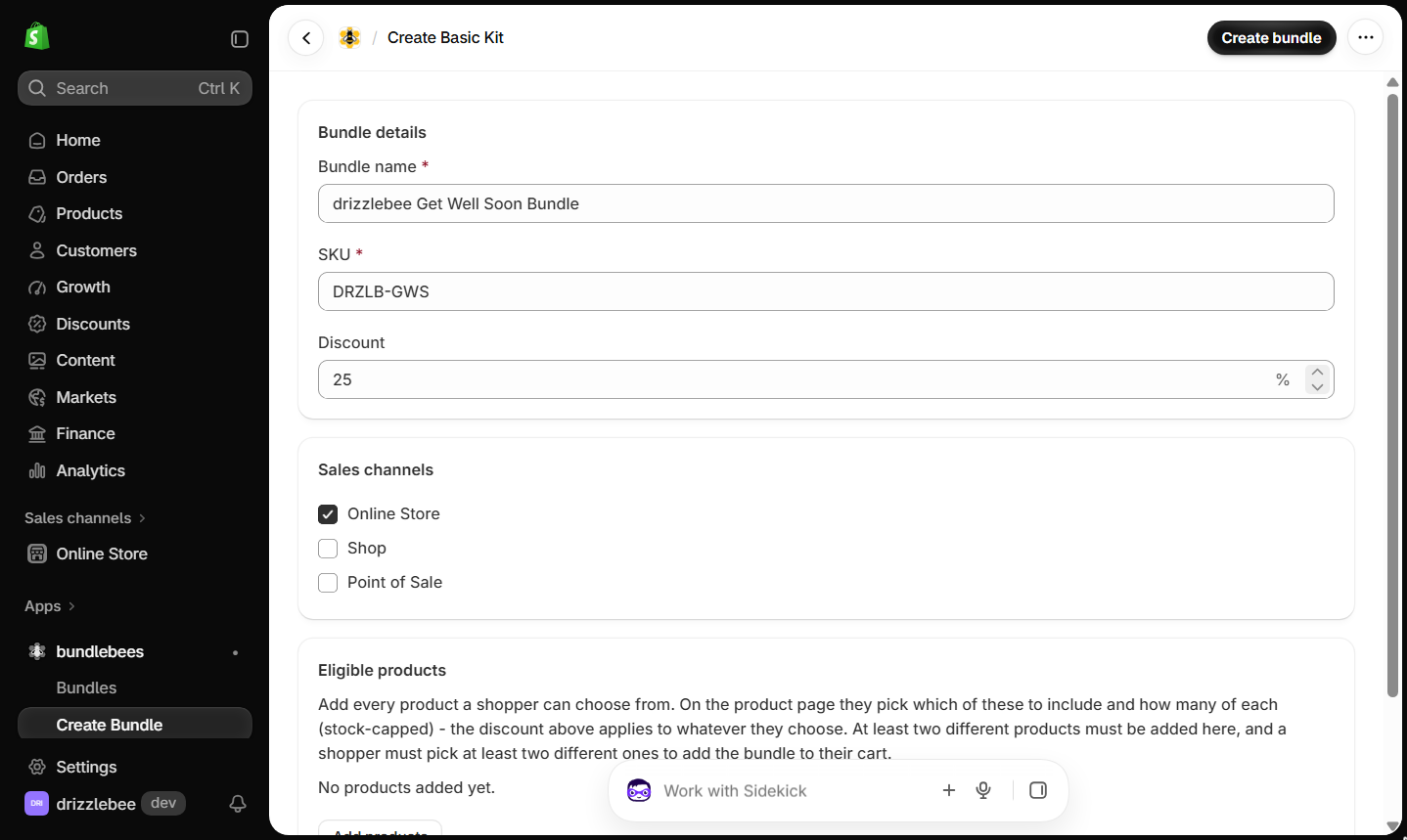
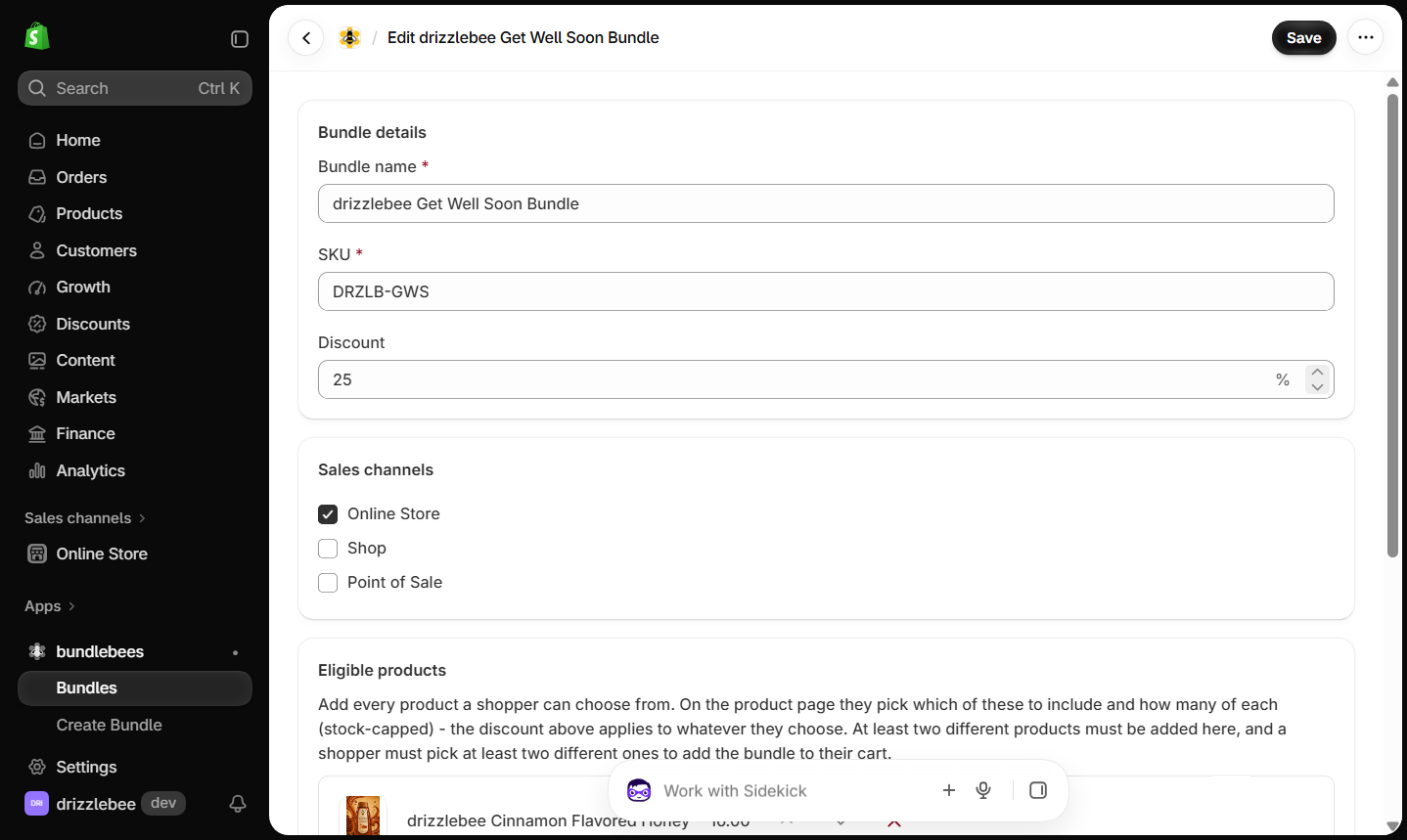
Every bundle needs a Bundle name and a SKU. The rest of the details depend on the type. A Basic Kit takes a Discount percentage that applies to whatever the shopper picks.
Under Sales channels, tick each channel the bundle should sell on: Online Store, Shop or Point of Sale.
4. Add products
Click Add products. The product picker opens with your catalog already loaded, so you can tick products right away or search to narrow the list. Click Add when you are done.
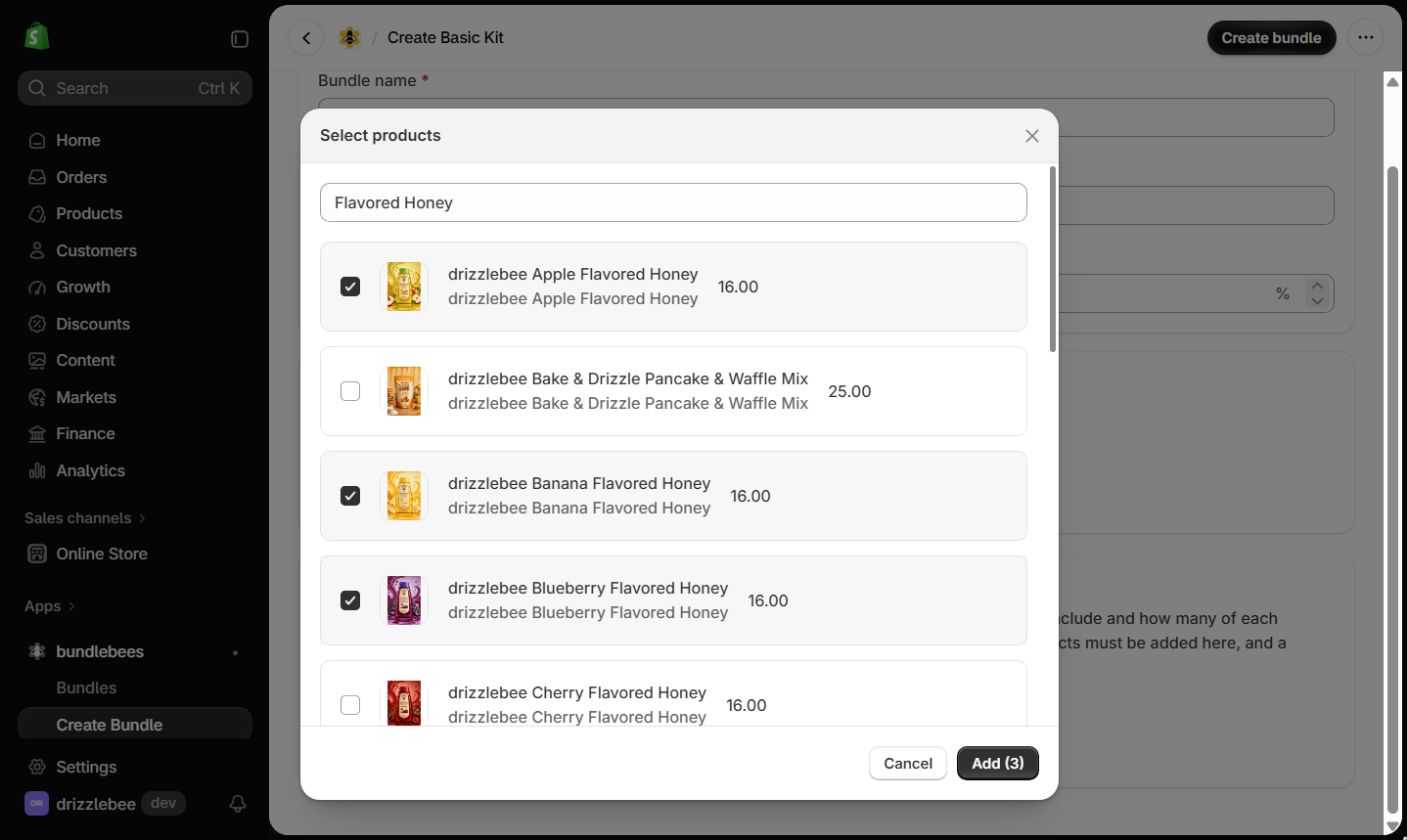
The products show up under Eligible products, where you can reorder or remove them. A Basic Kit needs at least two different products, and shoppers must pick at least two different ones before they can add the bundle to their cart. The quantity a shopper can choose is capped at what you have in stock.
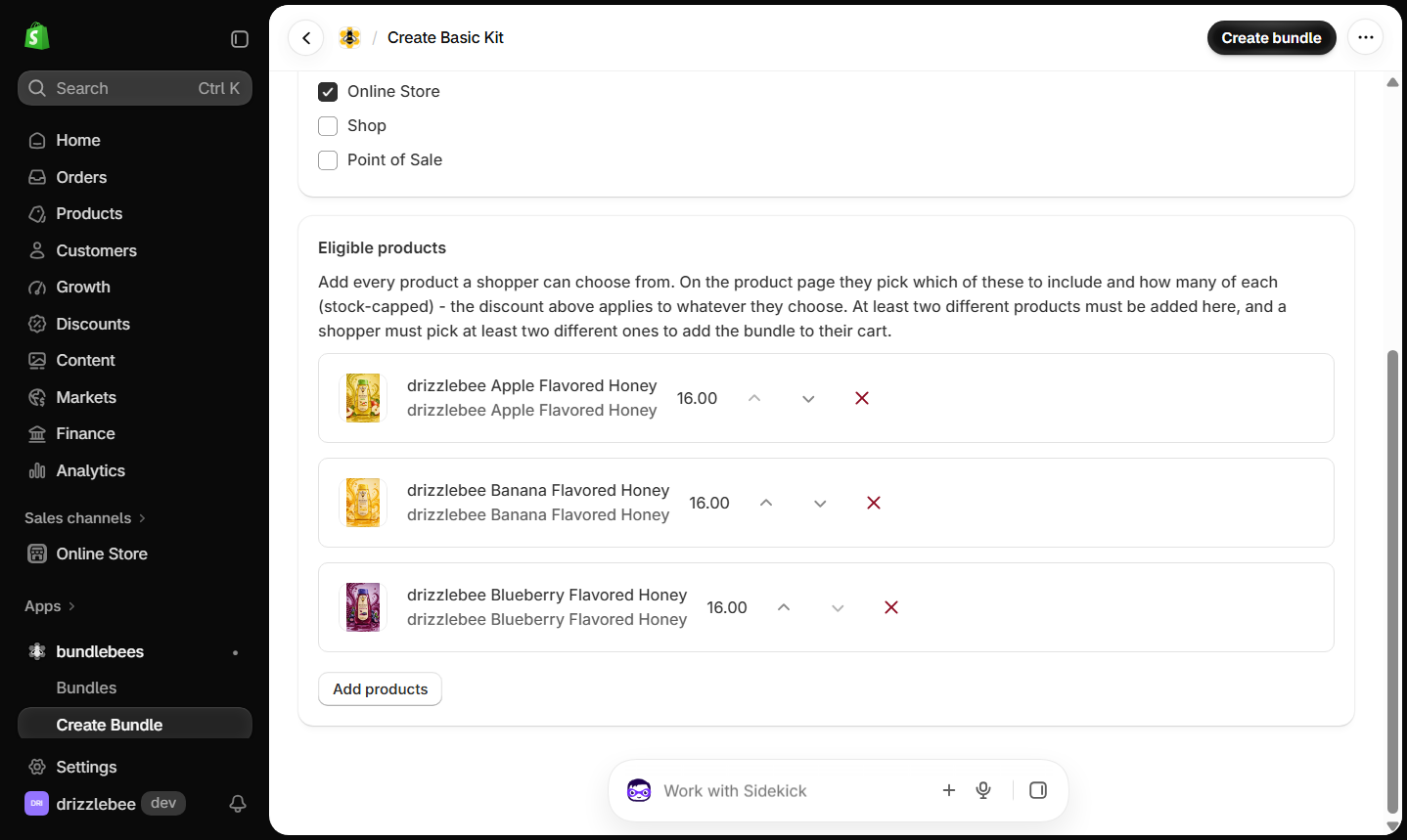
5. Create the bundle
Click Create bundle in the top right corner. Bundlebees creates the bundle product in your store, and you can then add images, a description and collections in Shopify like you would for any other product.
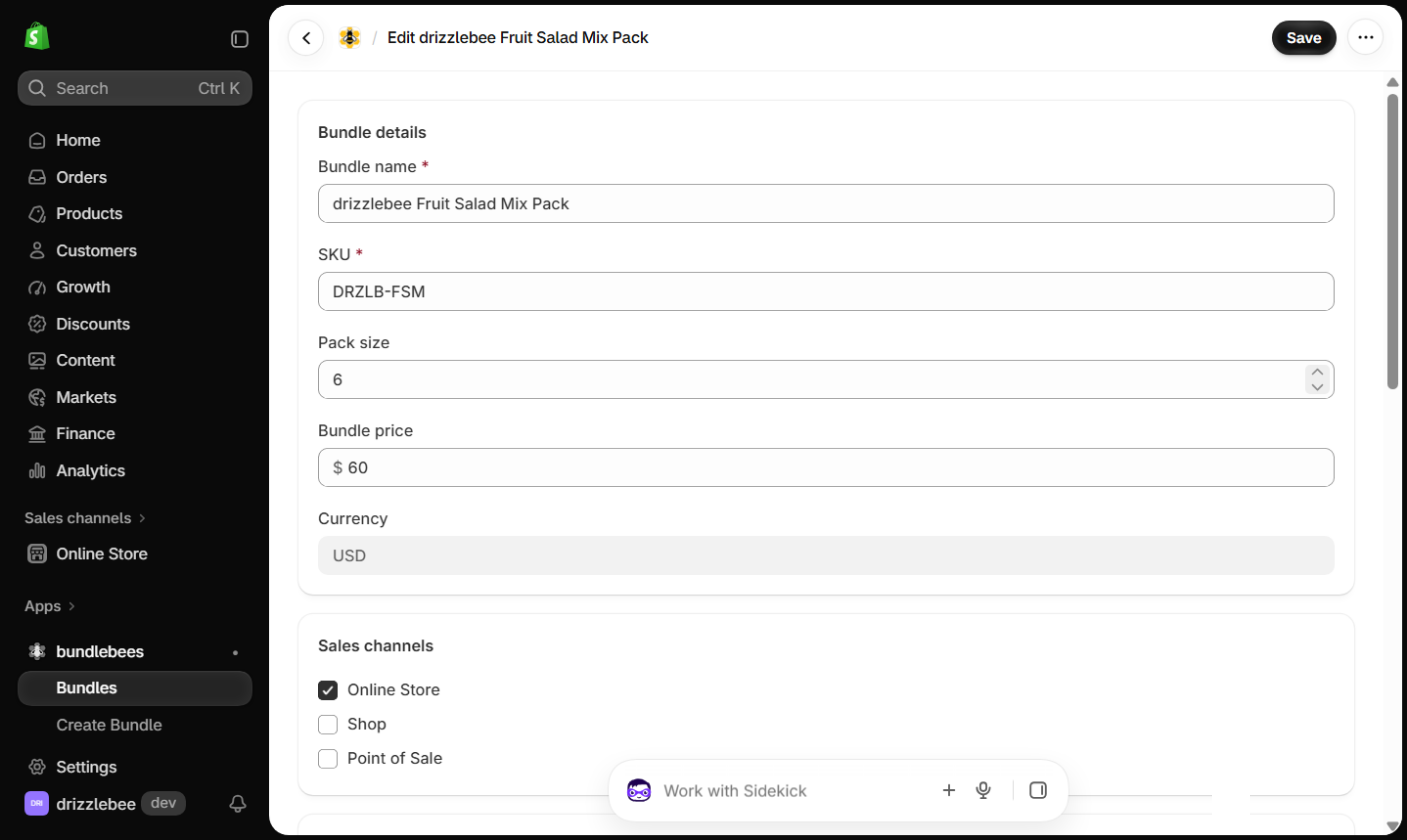
Mix Pack settings
A Mix Pack has a Pack size and a Bundle price instead of a discount. The currency follows your store currency. Under Eligible pool, add every product shoppers can choose from. They pick the pack size in total, in any mix, for the bundle price, so the pool needs at least as many products as the pack size.
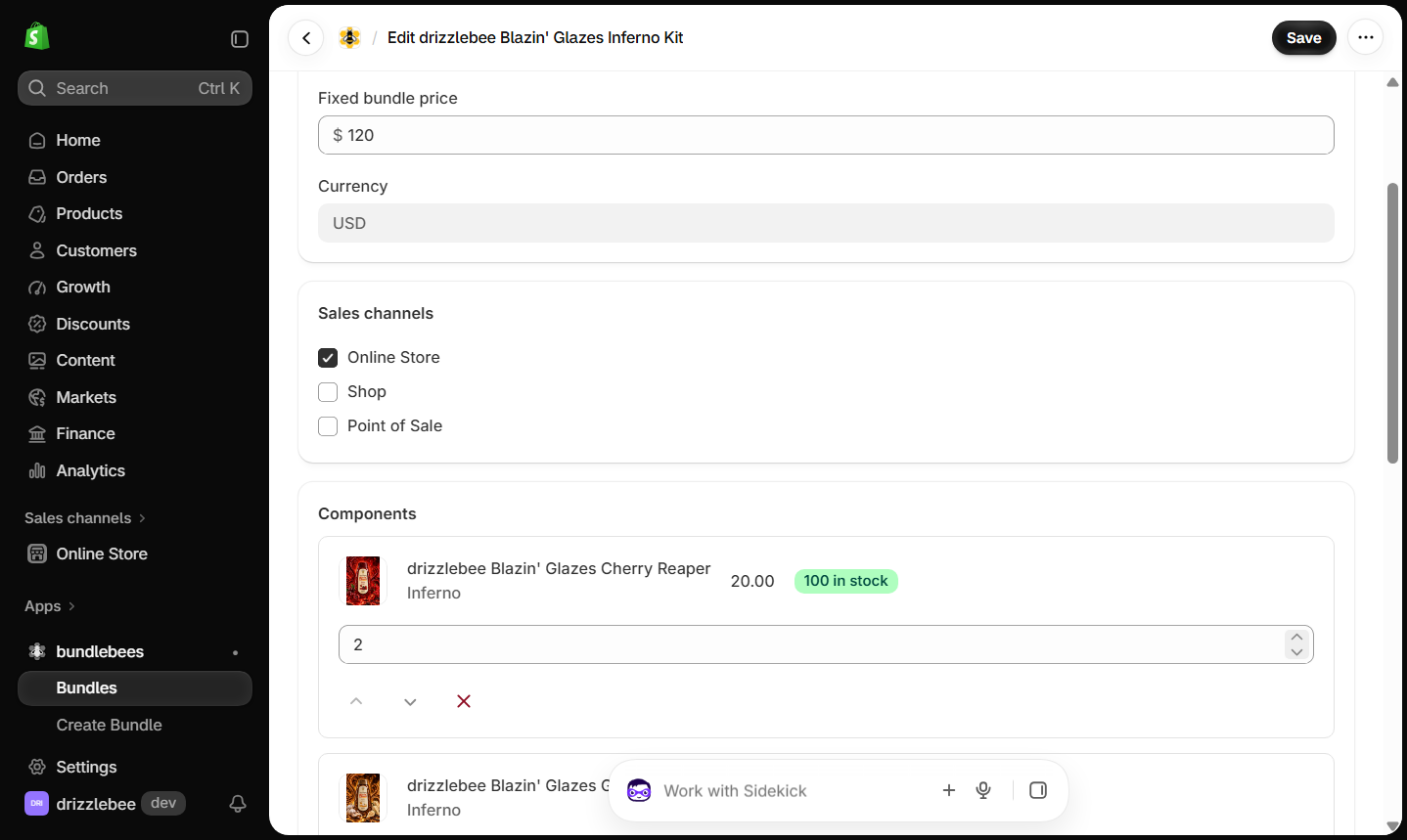
Fixed Kit settings
A Fixed Kit has a Fixed bundle price. Under Components, add the exact products and variants in the kit and set a quantity for each one. Each component shows how many are in stock.
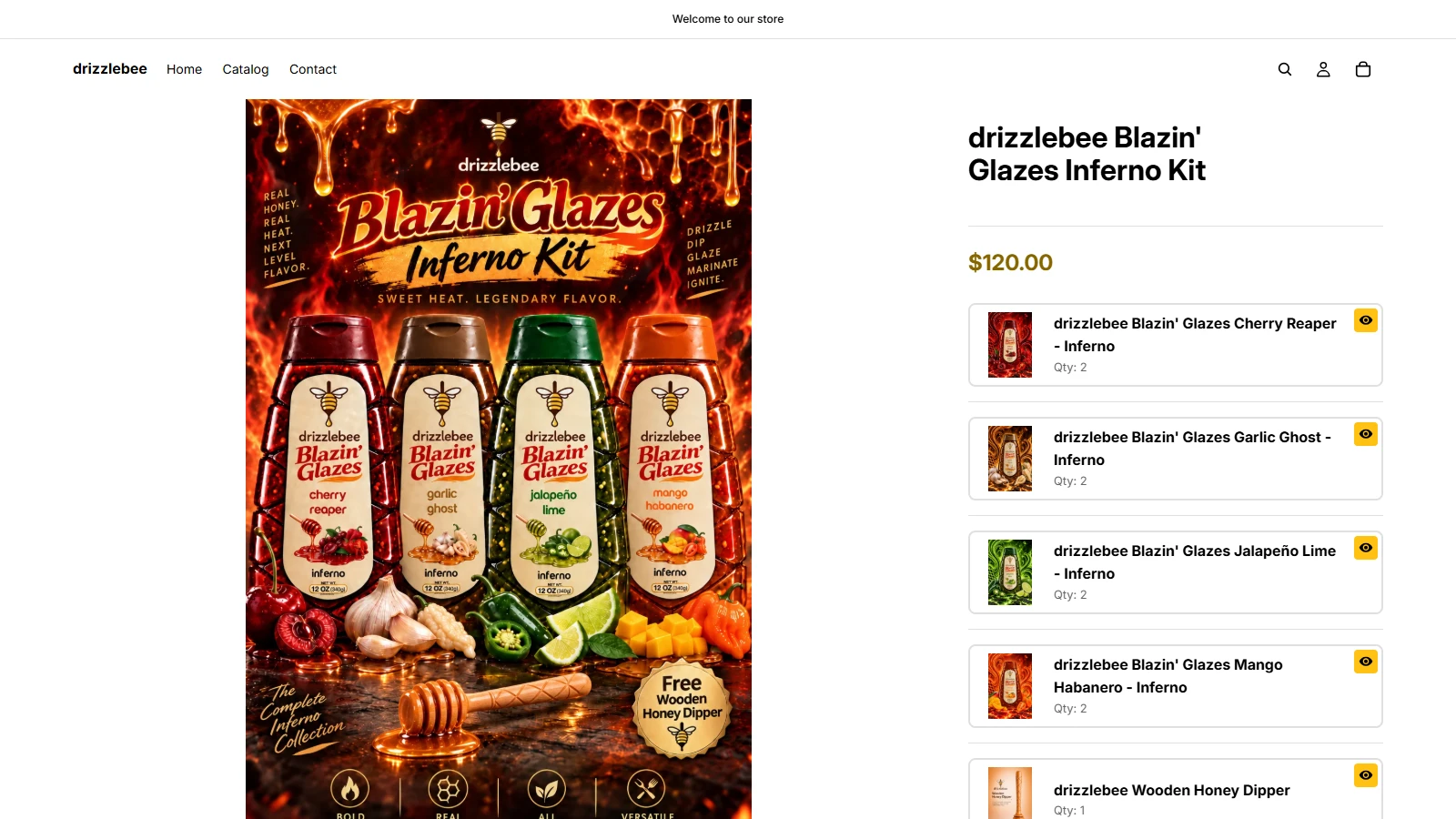
What shoppers see: the Fixed Kit’s product page shows the fixed bundle price and lists every component with its variant and quantity, so shoppers know exactly what’s in the kit before they add it to the cart.
BYO Kit settings
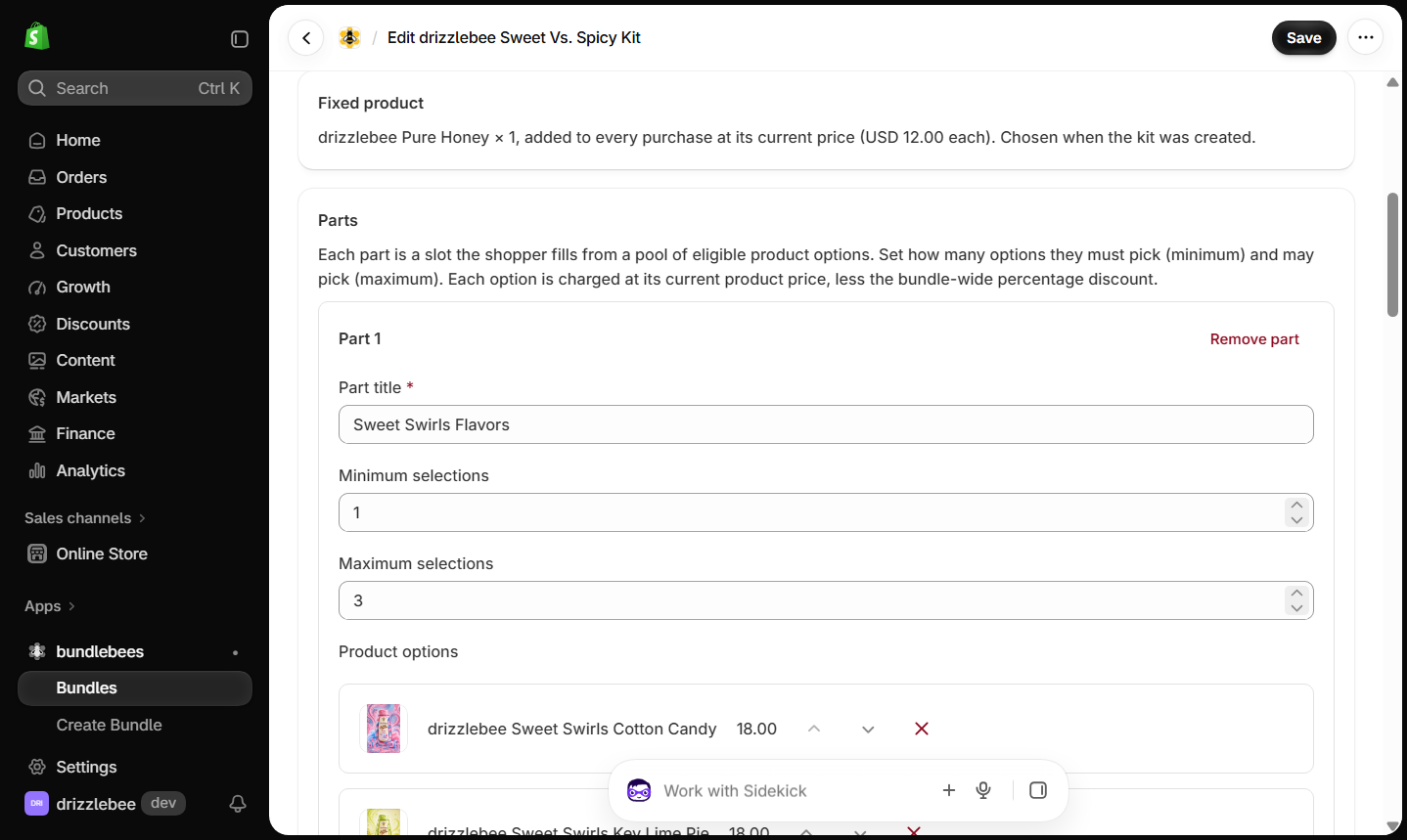
A BYO Kit can take an optional Bundle-wide discount. It applies to the fixed product and every part option, while add-ons are always priced separately. If you chose a Fixed product when you created the kit, it is added to every purchase at its current price.
Each Part is a slot the shopper fills from a pool of product options. Give it a title, then set the Minimum selections shoppers must make and the Maximum selections they may make. Use Add product options to fill the pool and Add another part for more slots.
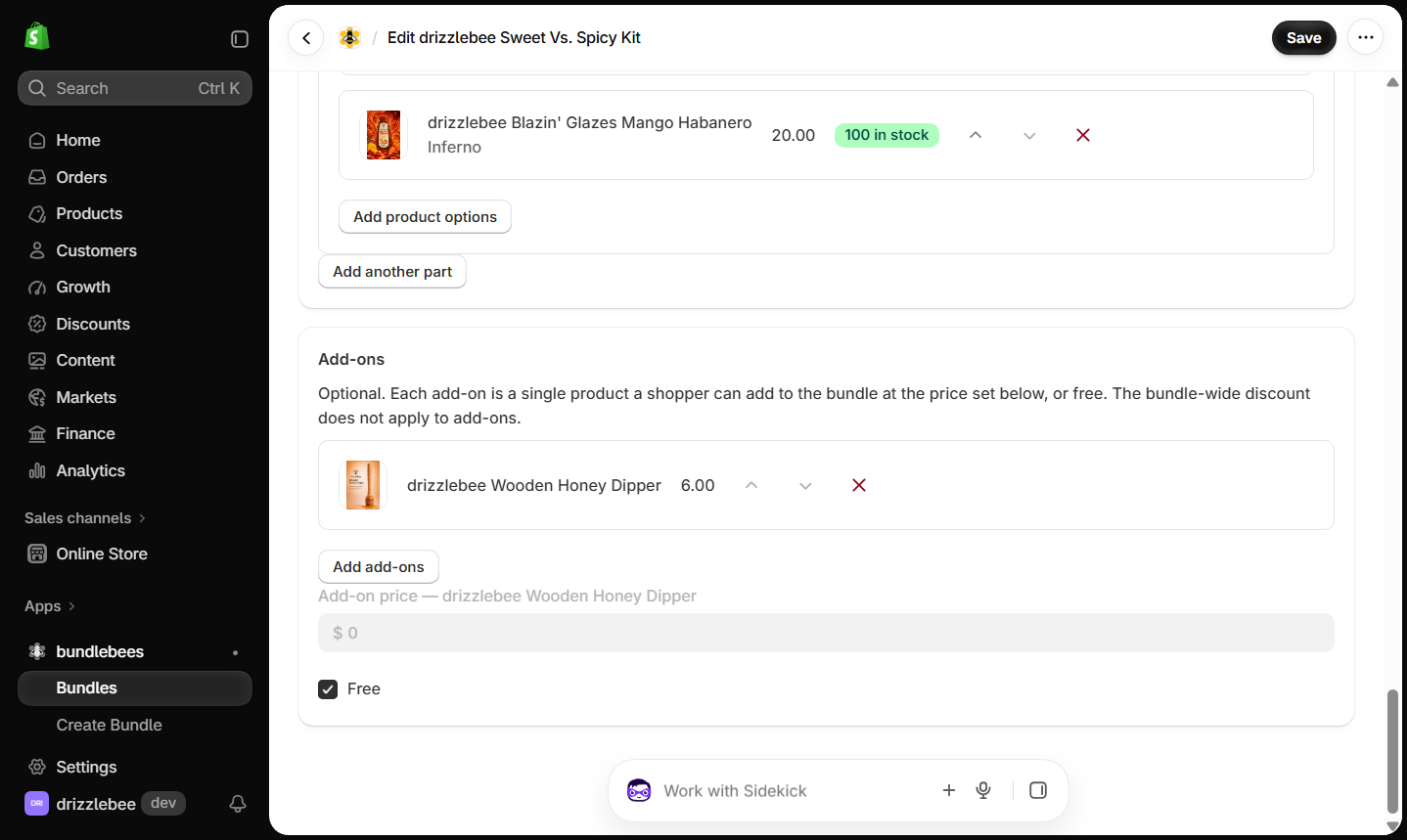
Add-ons are optional extras a shopper can add to the bundle. Each one has its own price, or you can tick Free. The bundle-wide discount does not apply to add-ons.
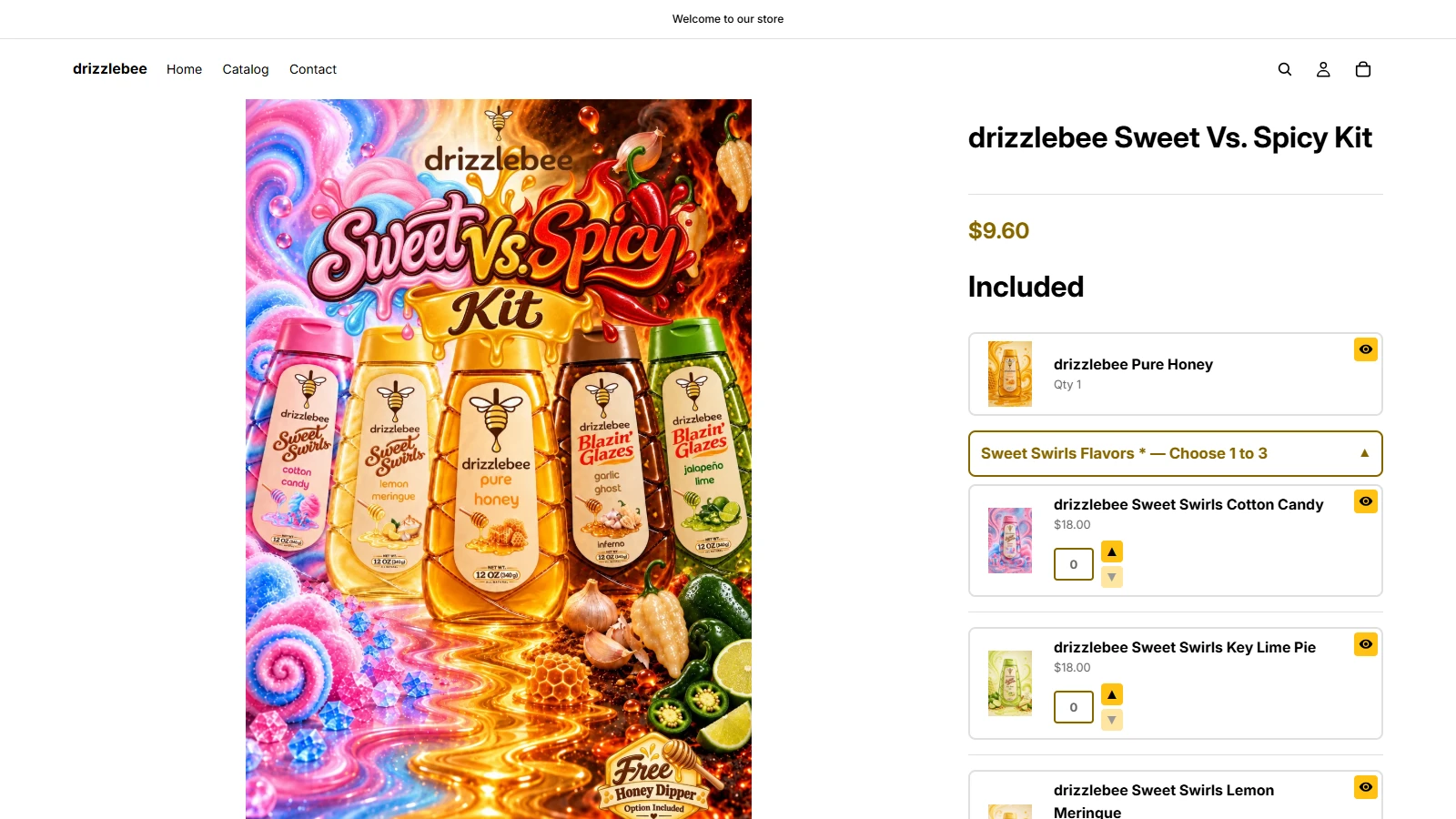
What shoppers see: on the BYO Kit’s product page, the fixed product appears under Included with its quantity. Each part shows its title and how many options to pick, like “Sweet Swirls Flavors, Choose 1 to 3”, and shoppers set a quantity for each option they want.
Linked Kit settings
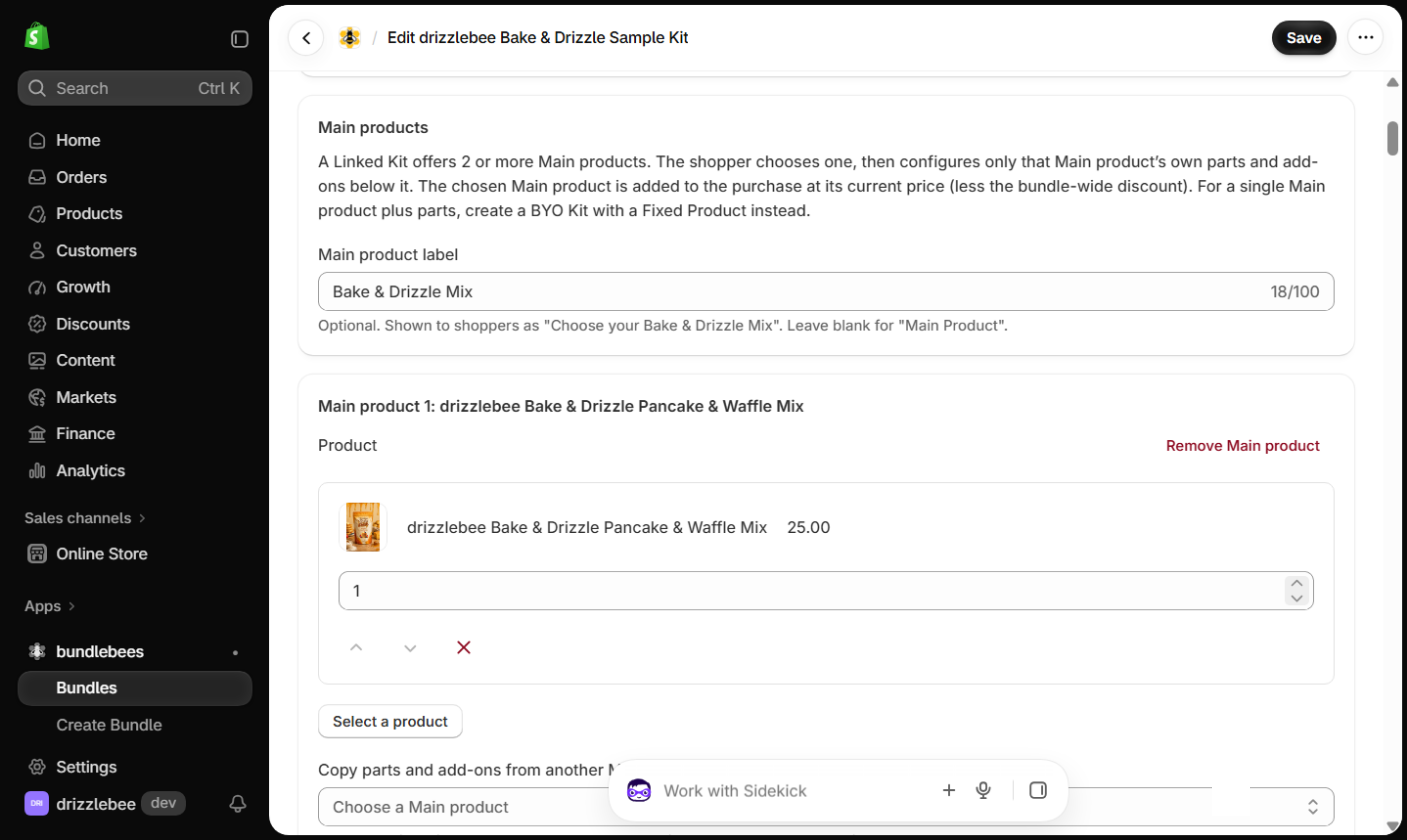
A Linked Kit offers two or more Main products. The shopper chooses one, then configures only that main product’s own parts and add-ons. Like the BYO Kit, it can take an optional bundle-wide discount.
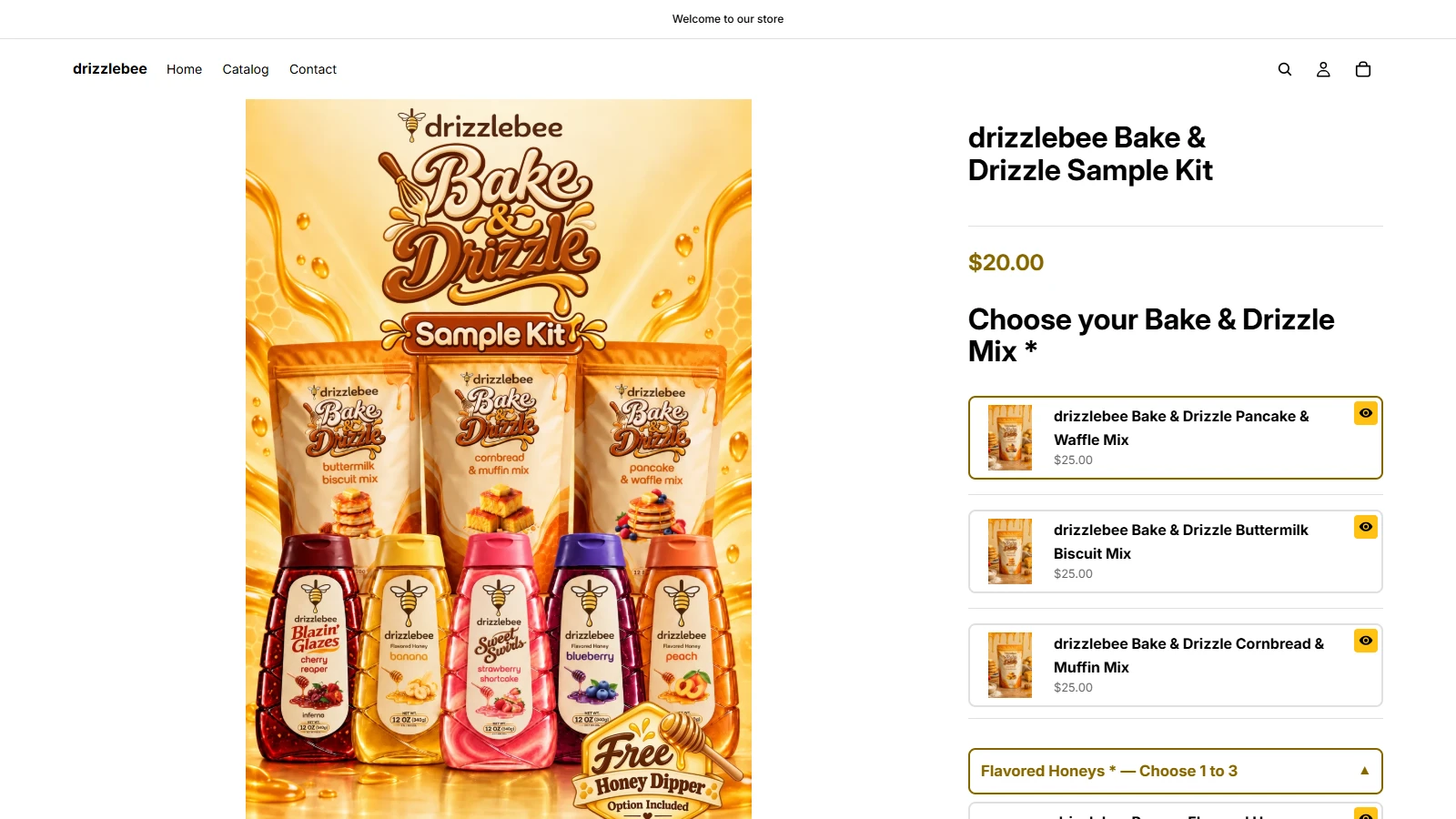
The Main product label controls what shoppers see. A label of “Bake & Drizzle Mix” shows as “Choose your Bake & Drizzle Mix”, and leaving it blank shows “Main Product”. Each main product gets its own parts and add-ons, and you can copy them from another main product to save time. If you only need one main product plus parts, use a BYO Kit with a fixed product instead.
What shoppers see: the main product label becomes the first choice on the product page, here “Choose your Bake & Drizzle Mix”, with each main product listed below it. Once a shopper picks one, they fill in that main product’s own parts, like Flavored Honeys.
Editing a bundle
Click Edit on the Bundles page to open a bundle. You get the same sections you filled in when creating it. Make your changes and click Save in the top right corner.
Disabling and deleting bundles
Use Disable to take a bundle off your storefront without losing it, which is handy for seasonal or time-limited offers. Delete removes the bundle permanently.
Settings
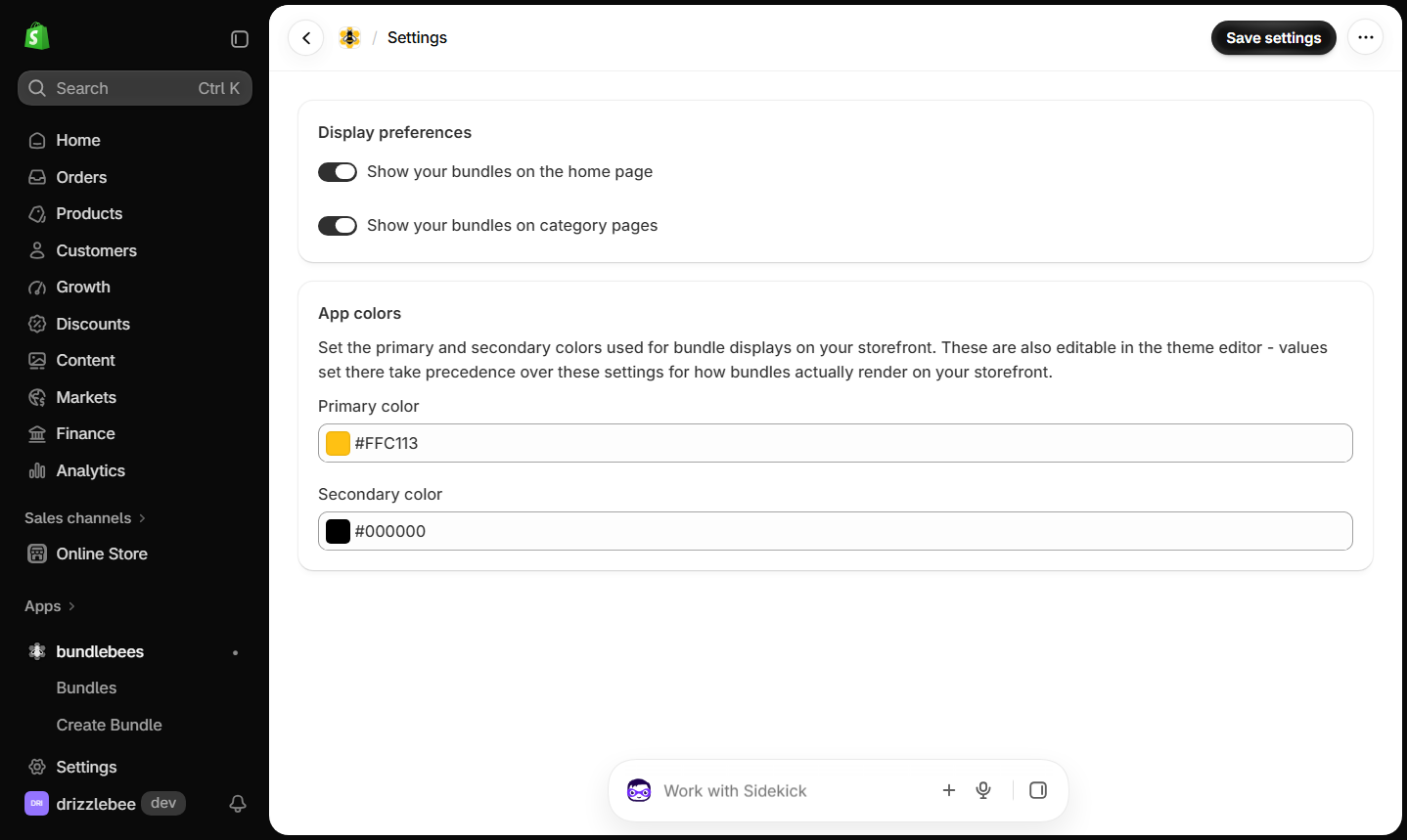
Under Display preferences, choose whether bundles show on your home page and on category pages. Under App colors, set the primary and secondary colors for bundle displays on your storefront. You can also change these colors in the Shopify theme editor, and the theme editor values win if the two are different. Click Save settings when you are done.
Your Bundlebees subscription on Shopify is billed and managed through Shopify, so there are no billing or cancellation controls in the app.
The full guide is also available as a PDF.
Shopify FAQs
Your Bundlebees subscription is billed through your Shopify account and shows up on your Shopify bill. You do not need to enter a separate payment method in the app.
Bundlebees for Shopify is $19.99 a month and includes a 15-day free trial, the same as the BigCommerce version. The subscription is approved and billed through your Shopify account.
No. Shopify requires apps to follow its own admin design, so Bundlebees for Shopify uses Shopify-style pages, buttons and navigation. The five bundle types are the same on both platforms.
Five: Basic Kit, Mix Pack, Fixed Kit, Build-Your-Own (BYO) Kit and Linked Kit. See the User Guide above for a description of each.
You choose the sales channels for each bundle when you create or edit it, for example Online Store, Shop and Point of Sale.
The quantity a shopper can choose for each product is capped at the amount you have in stock.
Yes. On the Bundlebees Settings page you can set a primary and secondary color for bundle displays and choose whether bundles show on your home page and category pages. The colors can also be changed in the Shopify theme editor, and those values take priority.